How to order business cards online and get them delivered to your door
No print shop, no queue, no files sent back and forth. Here is how to design a business card online and have the printed cards arrive at your door.
Tutorial6 min read
Key takeaways
- You can design a business card online and have it printed and delivered, without going to a print shop.
- In Meishi you pick a ready-made design, import one from Canva or start from scratch, then edit it in the browser.
- Click Order to my door, choose how many cards you want and where they go, and see the full price for printing and shipping before you pay.
- Every card carries a QR code that opens your digital card, and your video and links stay editable after the cards are printed.
- Prefer your own printer? You also get print-ready PDF files with crop marks and bleed.
In this article
The print shop, the old way
You know the routine. You design a card, or pay someone to. You email the file to a print shop and get a reply that the bleed is missing. You fix it, send it again, approve a proof, and a week later you stand in a queue to pick up a box of cards with a typo you only notice on the way home.
None of that is hard. It just eats an afternoon, and it happens again every time you change your job title or your phone number.
Ordering online removes the steps that don't need you:
- No queue and no opening hours. You order from your desk, at any time.
- No files sent back and forth. The print file is made from your design with the right size, bleed and crop marks.
- What you see is what arrives. You check both sides of the card on screen before you pay.
- Reordering takes a minute. When you run out, you order the same card again.
What you need
- A free Meishi account. You can start for free.
- Your details: name, job title, phone, email and website. If they are in your profile, the designs fill them in for you.
- Fifteen minutes. Most of it goes into choosing colours.
- Optional: a short video of yourself. It turns the card into a hologram when someone scans it. More on that in step 3.
Step 1: Pick a design or bring your own
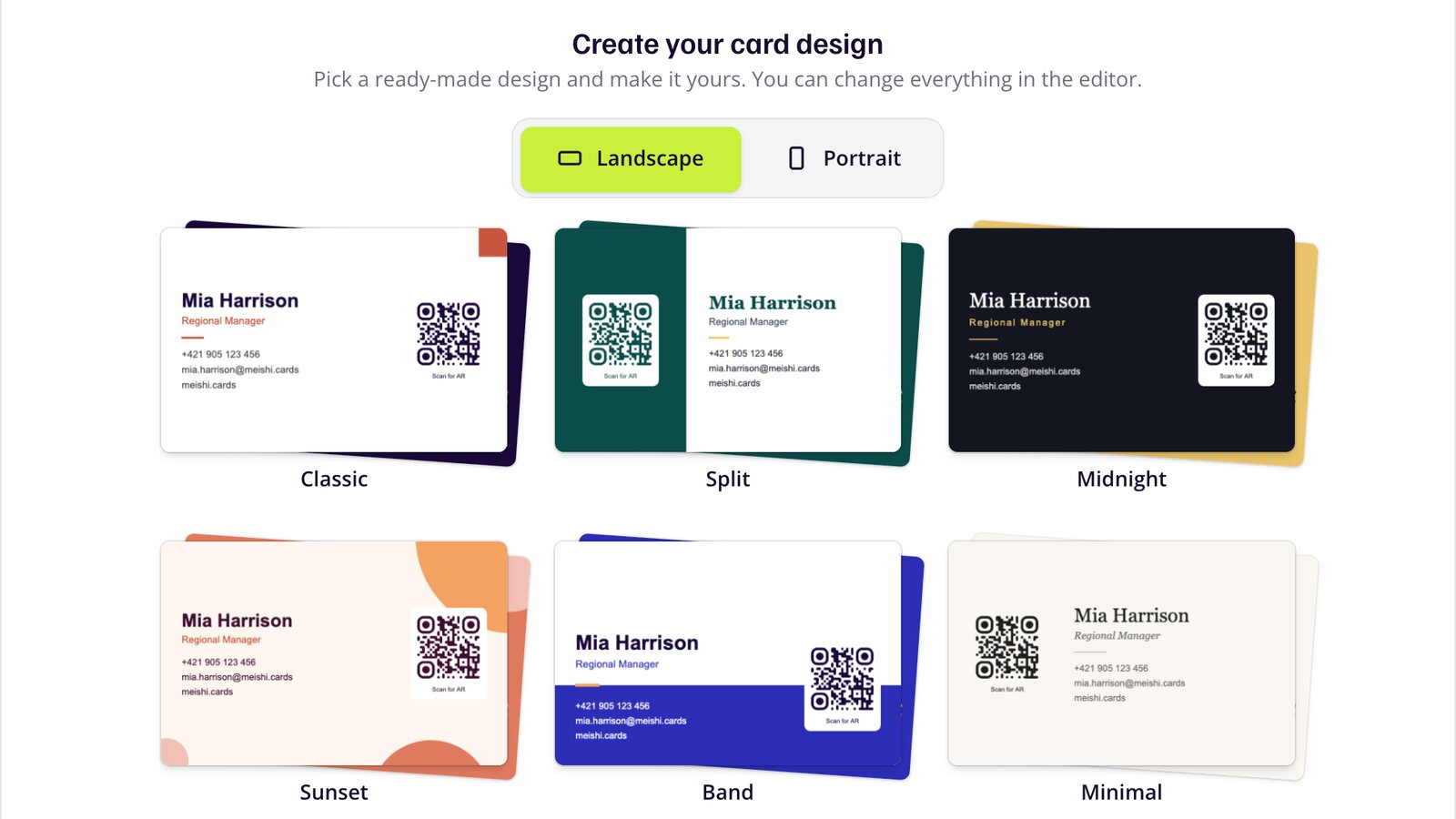
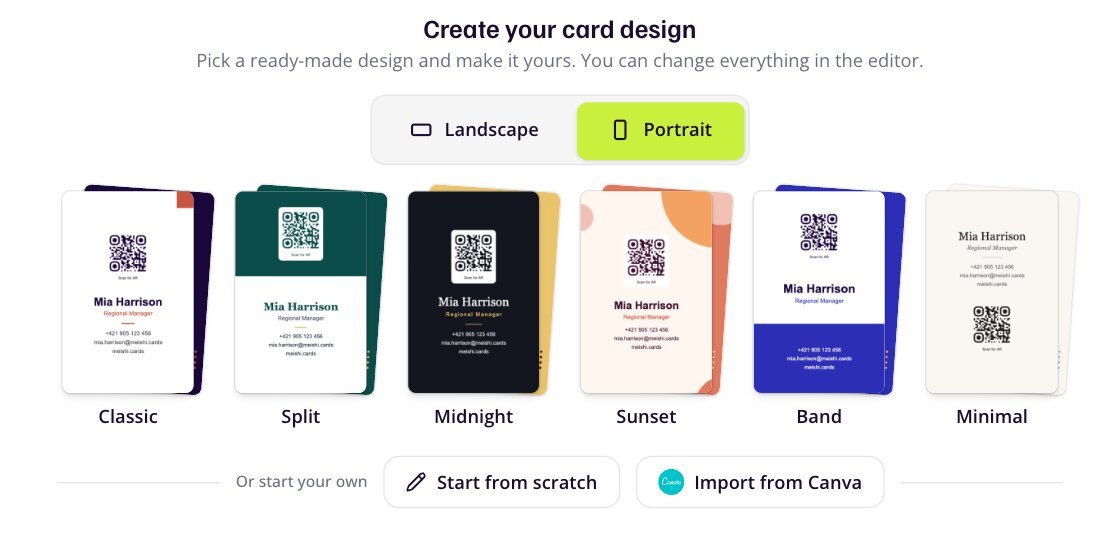
In Meishi, open Cards and click Create card. The first screen, Create your card design, offers three ways to start:
- A ready-made design. Every design already has your name and contact details in it, in landscape or portrait.
- Import from Canva, if you have designed your card there.
- Start from scratch: a blank card with your QR code, for your own design.
Cards come in 85 × 55 mm, the EU standard, or 90 × 50 mm, the Slovak and Czech standard.
Step 2: Make it yours in the editor
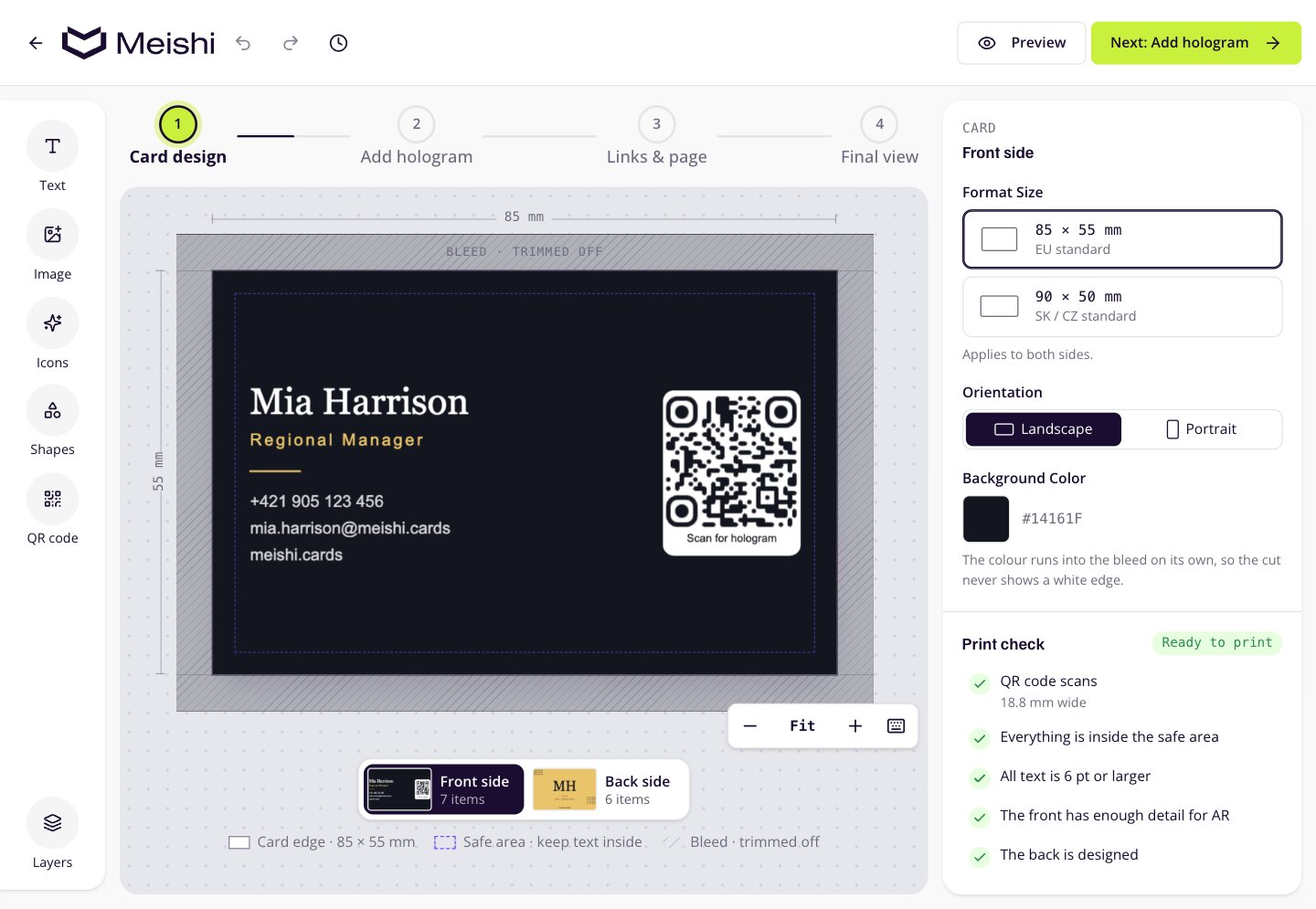
The editor works like any design tool. Click a text to change it, swap colours and fonts, add your logo or a photo. The back of the card is one click away.
Three things help a printed card come out right:
- Keep important text inside the guides. The edge of the card is cut, and anything too close to it can be trimmed off.
- Leave the QR code alone. Every card has one, and it is what people scan. You can move it and resize it down to a size that still scans reliably.
- Read your phone number and email twice. Nobody spell checks a phone number.
Step 3: Add a hologram and your links
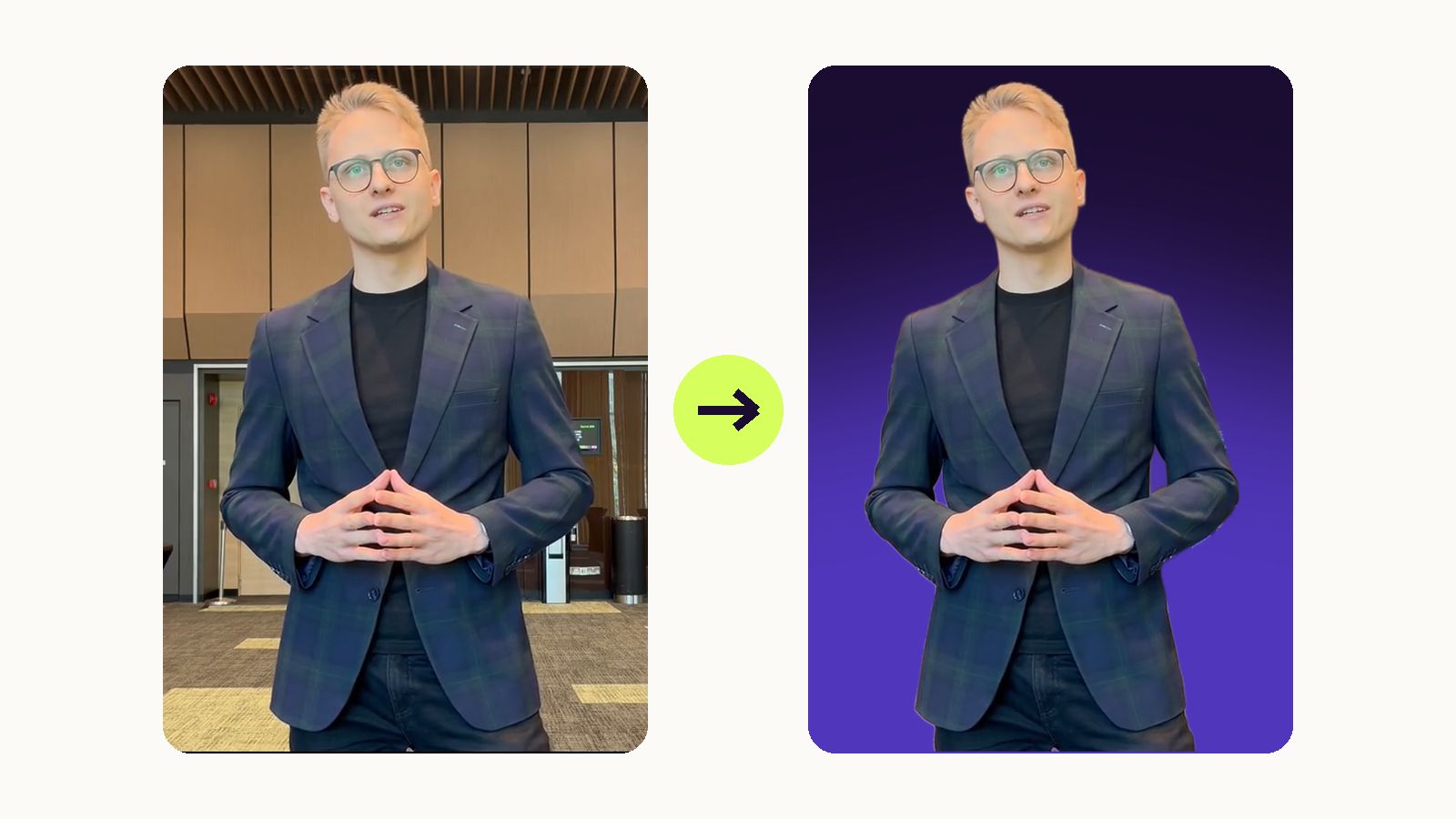
This step is optional, but it is the part people remember. After the design, Add hologram lets you upload or record a short video of yourself. The background is removed for you, and when someone scans your card, you appear standing on it. Our guide on how to make a hologram of yourself walks through it.
Under Links & page you add up to eight links and choose what a scan opens: your card page with contact buttons, the hologram, or both. People scan with their normal camera app. Nobody has to install anything.
Step 4: Check the final card
Final view shows both sides of your card. Before you order, scan the preview on your screen with your phone. It takes ten seconds and catches a QR code in the wrong place or a link that goes nowhere.
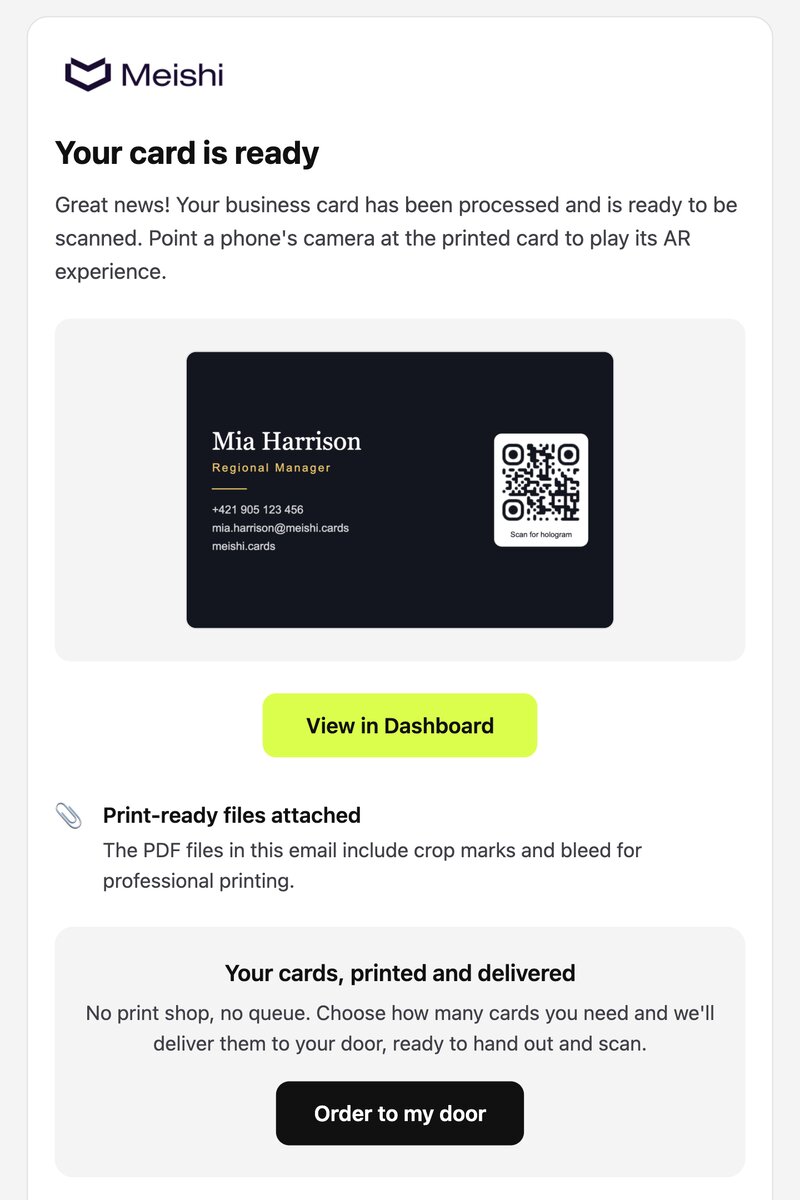
When the card is ready, you also get an email with the card and a button to order it printed.
Step 5: Order it to your door
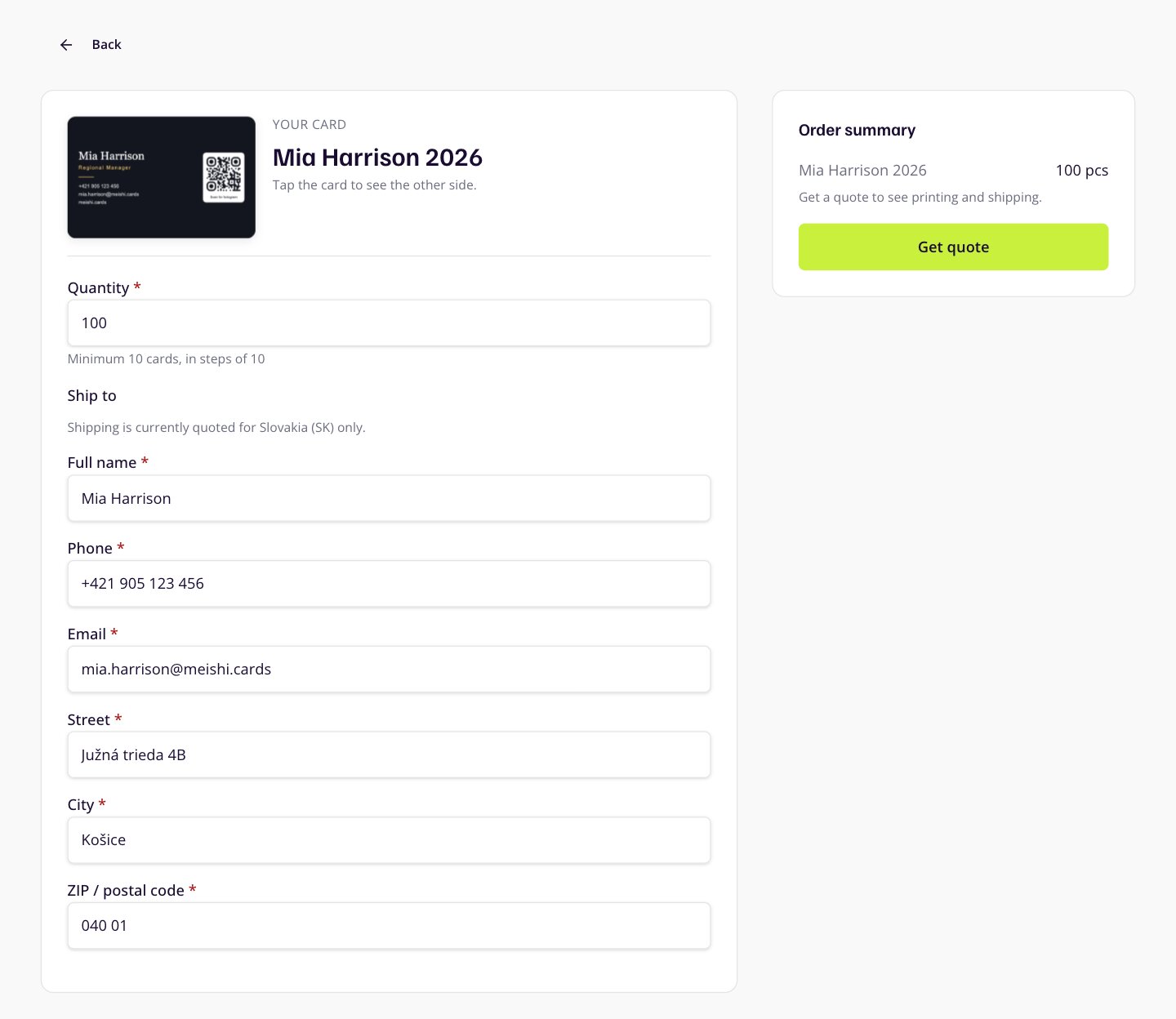
Click Order to my door. You find it on the card in your card list, on the card's page, in the last step of creating it and in the card-ready email. It opens the order page:
- Your card. Tap the preview to see the other side.
- Quantity. At least 10 cards, in steps of 10.
- Delivery address. We fill in what we already know, so you mostly just check it.
- Get quote. The order summary shows printing, shipping and the total. A quote is valid for about 30 minutes.
- Order and pay. You pay securely by card. VAT is added at checkout.
For now, we deliver to addresses in Slovakia. In a company account, the owner and admins can order cards for the whole team.
What happens after you pay
Your order goes straight to our print partner. The cards are printed on both sides, cut, packed and sent to the address you gave. The order page shows where your order is, and a Track shipment link appears once it is on its way.
Printed cards are made to your design, so the 14-day right of withdrawal doesn't apply to them. Your rights if something arrives damaged or misprinted are not affected.
Prefer your local printer?
That works too. The card-ready email includes print-ready PDF files of both sides, with crop marks and bleed, and you can download them again from your card list at any time. Any print shop can use them as they are.
Tips for cards you'll be happy with
- Order enough. Printing has a setup cost, so each card in a run of 100 costs far less than each card in a run of 10.
- Check the small print. Read every line once more on the order page. That is your last chance before the cards are made.
- Use the back. A plain back is wasted space. Your website, a short line about what you do or a bigger QR code all earn their place.
- Make the QR code say something. "Scan for hologram" or "Scan to save my contact" gets more scans than a bare code.
- Keep your details fresh without reprinting. Your video and links stay editable. The QR code on the printed card always opens the latest version.
Frequently asked questions
How many business cards can I order?
At least 10, in steps of 10. Larger runs are better value per card, because printing has a setup cost that is the same for 10 cards or 100.
Where do you deliver?
For now, to addresses in Slovakia. Wherever you are, you can download the print-ready PDF files of your card and print them at any local print shop.
Do I see the price before I pay?
Yes. After you choose the quantity and the address, the order summary shows printing, shipping and the total. VAT is added at checkout.
Do I need to prepare print files?
No. The print file is made from your design with the right size, bleed and crop marks. You only check the card on screen.
Can I change my card after it is printed?
The printed design stays as it is, but your video and links can be changed at any time. The QR code on your printed cards always opens the latest version.
Can I cancel an order of printed cards?
Printed cards are made to your design, so the 14-day right of withdrawal does not apply. If cards arrive damaged or misprinted, your rights for defects are not affected.