How to add a video to your email signature (Gmail, Outlook and Apple Mail)
Email apps won't play video inside a message. Here is the method that works everywhere instead, and how to set it up in Gmail, Outlook and Apple Mail in about five minutes.
Tutorial5 min read

Key takeaways
- No major email app plays video inside a message. Embedded video is stripped or blocked.
- What works: a small animated GIF of you that links to a page where the full video plays.
- Keep the animation short and light, a few seconds and a few hundred KB, so emails stay fast.
- Paste the signature itself into Gmail, Outlook or Apple Mail, never the HTML code.
- Track clicks, not just sends, to see whether people actually watch.
In this article
Why you can't just embed a video
It sounds like it should be easy. It isn't, and that's not your fault.
- Gmail removes video players from emails entirely.
- Outlook blocks them for security reasons, on the web and on the desktop.
- Apple Mail can play some video, but most of your recipients don't read your email in Apple Mail.
Attaching a video file is worse: it makes every email heavy, lands in spam more easily and nobody opens attachments from strangers.
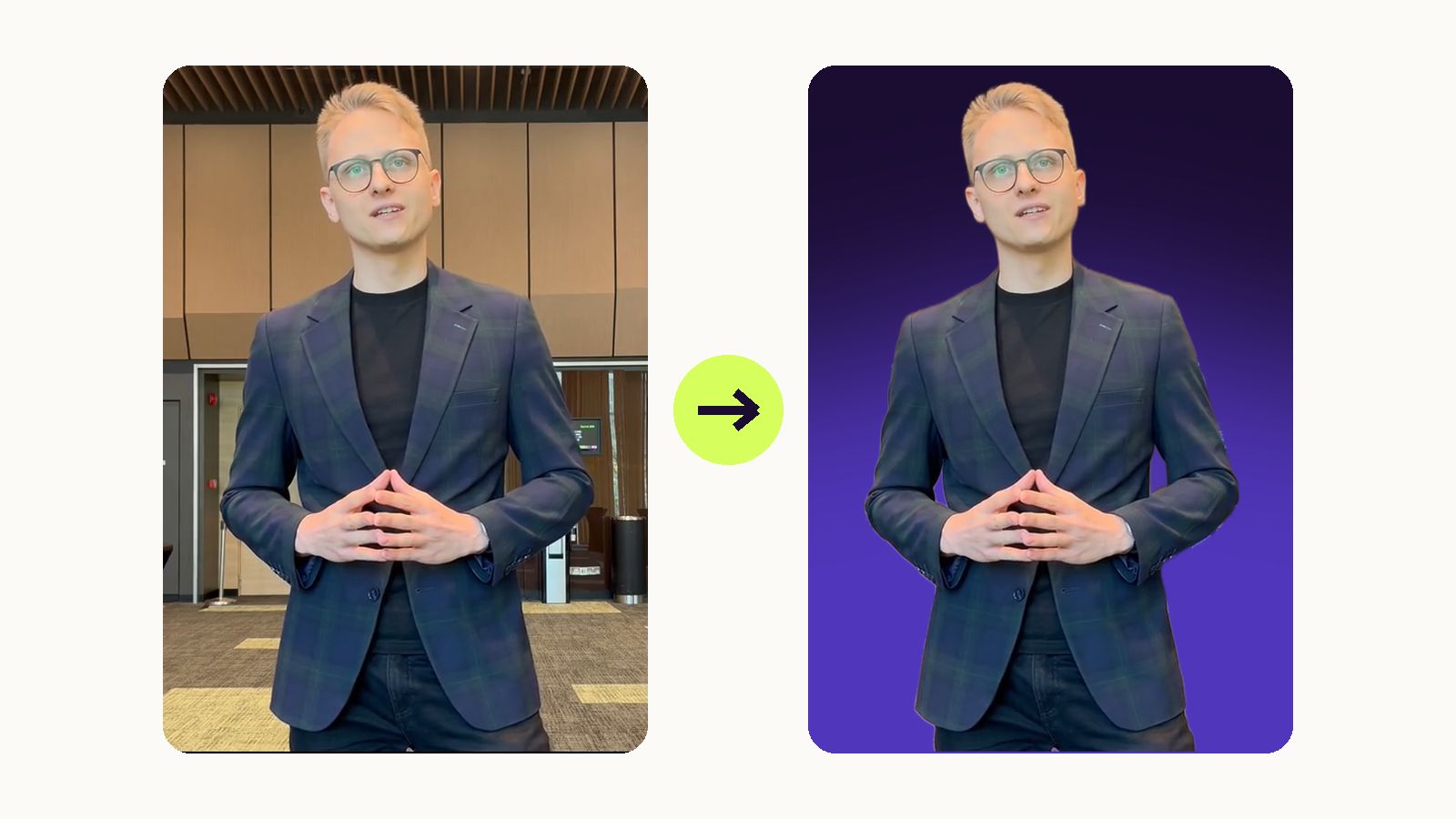
So every "video email signature" you have ever seen works the same way: a small animated image that looks like a video, linked to a page where the real video plays. The trick is doing it well.
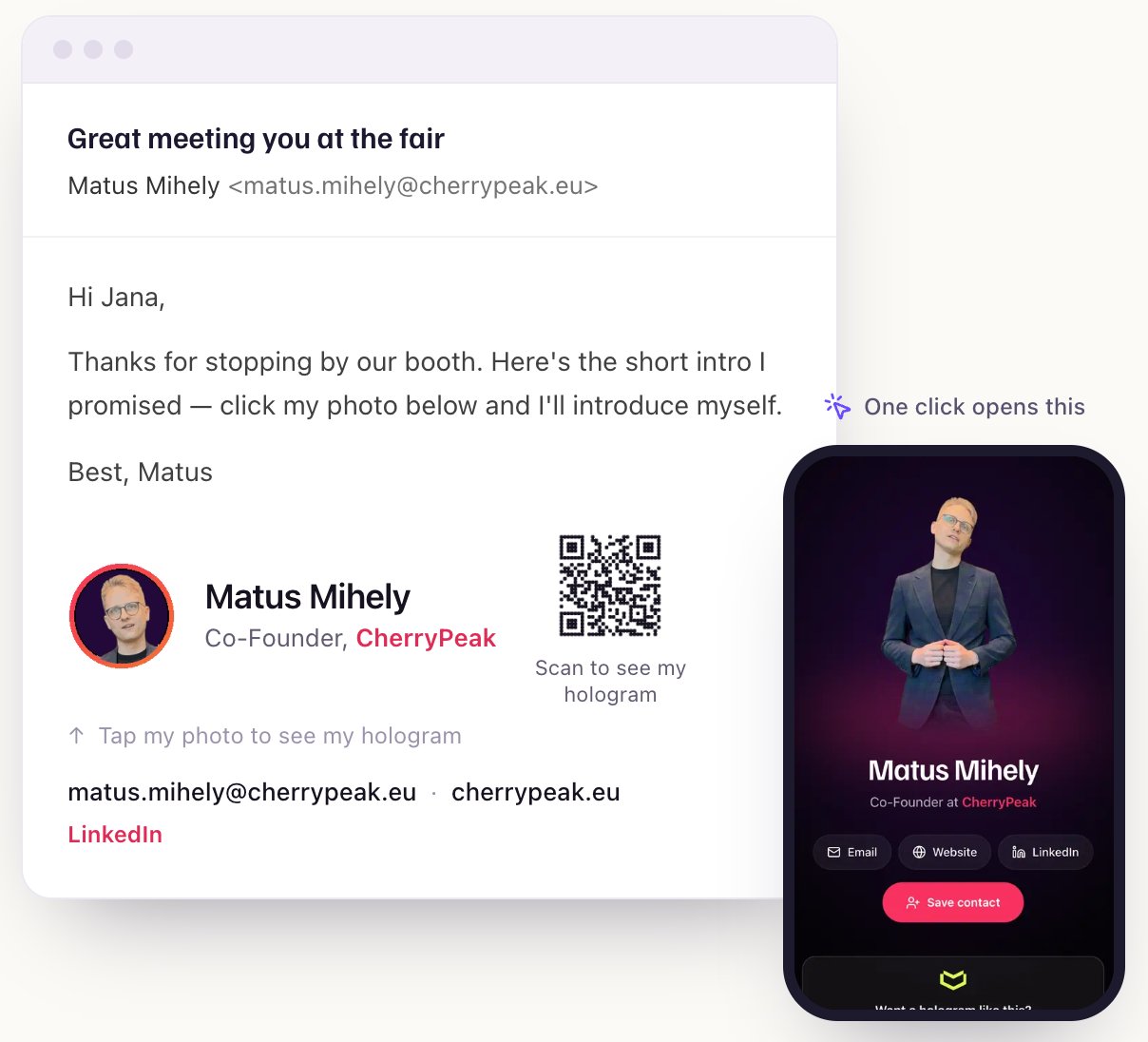
What a good video signature looks like
- A short loop of you, two or three seconds, that catches the eye without screaming.
- Your name, title and contact details as real text, so they show up even when images are blocked.
- A short call to action next to the animation, such as "Tap my photo to see my hologram" or "Watch my hello".
- A link to a page where the full video plays, with buttons to call, email, visit your website or save your contact.
The quick way: make it in Meishi
Meishi builds all of that for you, from the video to the page it opens. It takes about five minutes.
- Open Email signatures and click New signature.
- Fill in your details. They are prefilled from your profile.
- Choose your hologram video or photo. Reuse the hologram from your business card, upload or record a new video, or use a photo. Photos and holograms you already made don't use a credit.
- Pick a style: Story puts your live hologram in a ring like a social profile, Reel shows a short video card next to your details, Contact stacks everything like a phone contact, Quiet keeps text first with a small live avatar, and Card shows one of your card designs.
- Set your colours, and optionally add a QR code for people reading on a laptop: they scan it and see your hologram on their phone.
- Click Save signature. Meishi turns your video into a light, looping animation and gives you a signature page to link to.
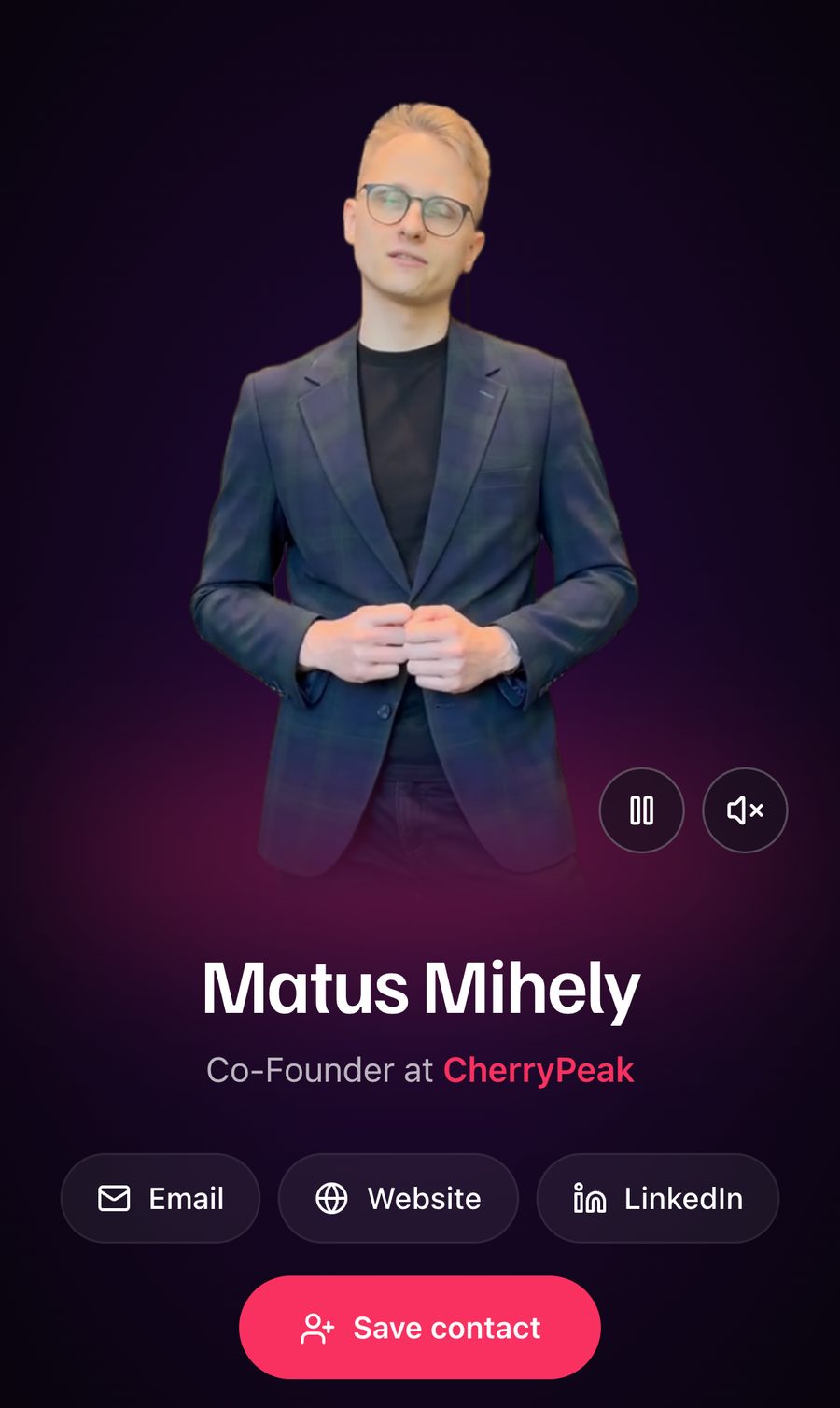
Then click Copy signature and follow the steps for your email app below. One rule for all of them: paste the signature itself, never the HTML code.
Add it to Gmail
- Click Copy signature. Any browser works.
- In Gmail, click the gear icon, then See all settings, and stay on the General tab.
- Scroll to Signature and click Create new. Give it a name.
- Click into the signature box and paste with Cmd+V on a Mac or Ctrl+V on Windows.
- Under Signature defaults, choose it for new emails and for replies and forwards.
- Scroll to the very bottom, click Save changes and send yourself a test email.
Add it to Outlook
Outlook on the web and the new Outlook for Windows and Mac:
- Click Copy signature.
- Open Settings (the gear), then Accounts, then Signatures, and click New signature.
- Name it, click into the box, paste and click Save.
- On the same screen, choose it for new messages and for replies and forwards, then Save again.
Classic Outlook for Windows: go to File, Options, Mail, Signatures, click New, paste into the edit box and set it as the default for new messages and replies.
Classic Outlook for Mac: go to Outlook, Settings, Signatures, click +, paste into the editor, close it and choose the signature under default signatures.
Add it to Apple Mail
- Click Copy signature. For the best result, do this in Safari.
- In Mail, open Mail, Settings (Cmd+comma), Signatures.
- Select your email account on the left, click + below the middle list and name the signature.
- Untick "Always match my default message font" before you paste. This is the important step: otherwise Mail turns the design into plain text.
- Click into the box on the right, press Cmd+A to select the placeholder text, then Cmd+V to paste.
- Under Choose Signature, pick your new signature so it's added to new emails automatically.
- Close Settings and send yourself a test email.
Mail sometimes shows the animation as an empty box inside Settings. Don't worry: check the test email, not the settings window.
The do-it-yourself way
If you'd rather build it by hand, here is the recipe:
- Record a short clip of yourself. Our guide on how to film yourself with a phone covers the basics.
- Host the full video somewhere public: YouTube, Vimeo or a page on your website.
- Turn two or three seconds into a GIF with any GIF maker. Keep it small: under about 350 KB and no wider than about 300 pixels. Adding a play button makes it obvious it's a video.
- Upload the GIF to a place that serves images publicly, and insert it in your signature editor.
- Link the image to your video.
It works, but you'll be maintaining three things in three places, and you won't know whether anyone clicks.
Best practices
- Short and light. A 2 to 3 second loop is enough to catch the eye. Large GIFs make emails slow and can be clipped.
- Text stays text. Never put your name or phone number inside an image.
- One call to action. "Tap my photo to see my hologram" tells people what happens.
- Test everywhere. Send yourself an email and open it in Gmail, Outlook and on your phone.
- Keep it fresh. A new role or a new offer is a good reason to record a new clip.
How to know if anyone watches
In Meishi, every click on your signature, from the animation, the card or its QR code, is counted. The dashboard shows signature clicks per day, which signatures are clicked most, and whether clicks came from emails or from the QR code. Links that open your phone, email or website directly aren't counted, so the number you see is people who wanted to see more of you.
Frequently asked questions
Can you embed a video in an email signature?
Not in a way that plays for most people. Gmail removes video players and Outlook blocks them. The reliable method is an animated GIF preview that links to a page where the video plays.
Will an animated signature send my emails to spam?
A small image in a signature is normal and not a spam signal by itself. Keep the animation light, keep your details as real text, and avoid signatures made of one big image.
Does a video signature work in the Gmail app on my phone?
Yes, the Gmail apps use the signature from Gmail on the web as long as "Mobile signature" is switched off in the app's settings.
Why does my signature turn into plain text in Apple Mail?
Untick "Always match my default message font" in Mail's signature settings, delete the signature's content and paste it again.
Do I have to paste my signature again after changes?
The animation and images are loaded live, so a new hologram usually shows up without pasting, though some email apps keep old images cached for a while. If you change your name, title or links, copy and paste the signature again.
Does a hologram email signature cost anything?
Email signatures are included in every Meishi plan, including Free. A new hologram video uses one AR credit; a photo or a hologram you already made for your business card doesn't.